In Part 1 we deployed PocketBase on AWS EC2 with Docker.
Now, let's put it behind NGINX and enable TLS certificates using Let's Encrypt.
Time: ~10–15 min.
What this will cover:
- Domain pointing to the server (api.example.com →
) - NGINX reverse proxy + Let's Encrypt TLS
This post is the second in a four-part series on deploying and extending PocketBase.
Here are the 4 articles:
- • Part 1: Deploy PocketBase on AWS with Docker
- • Part 2: Custom domain + free HTTPS (TLS) <= **We are here**
- • Part 3: S3 storage, email setup, and automated backups
- • Part 4: Integrating Cloudflare Functions to handle advanced logic or external APIs, a faster way to extend PocketBase without modifying its core or waiting for rebuilds
Once all four parts are live, you'll have a complete, production-ready PocketBase setup with a clean path for future extensions.
Deploying PocketBase manually is simple… until you do it three times.
In this series, I'll show the full manual setup and you will understand why it's worth automating.
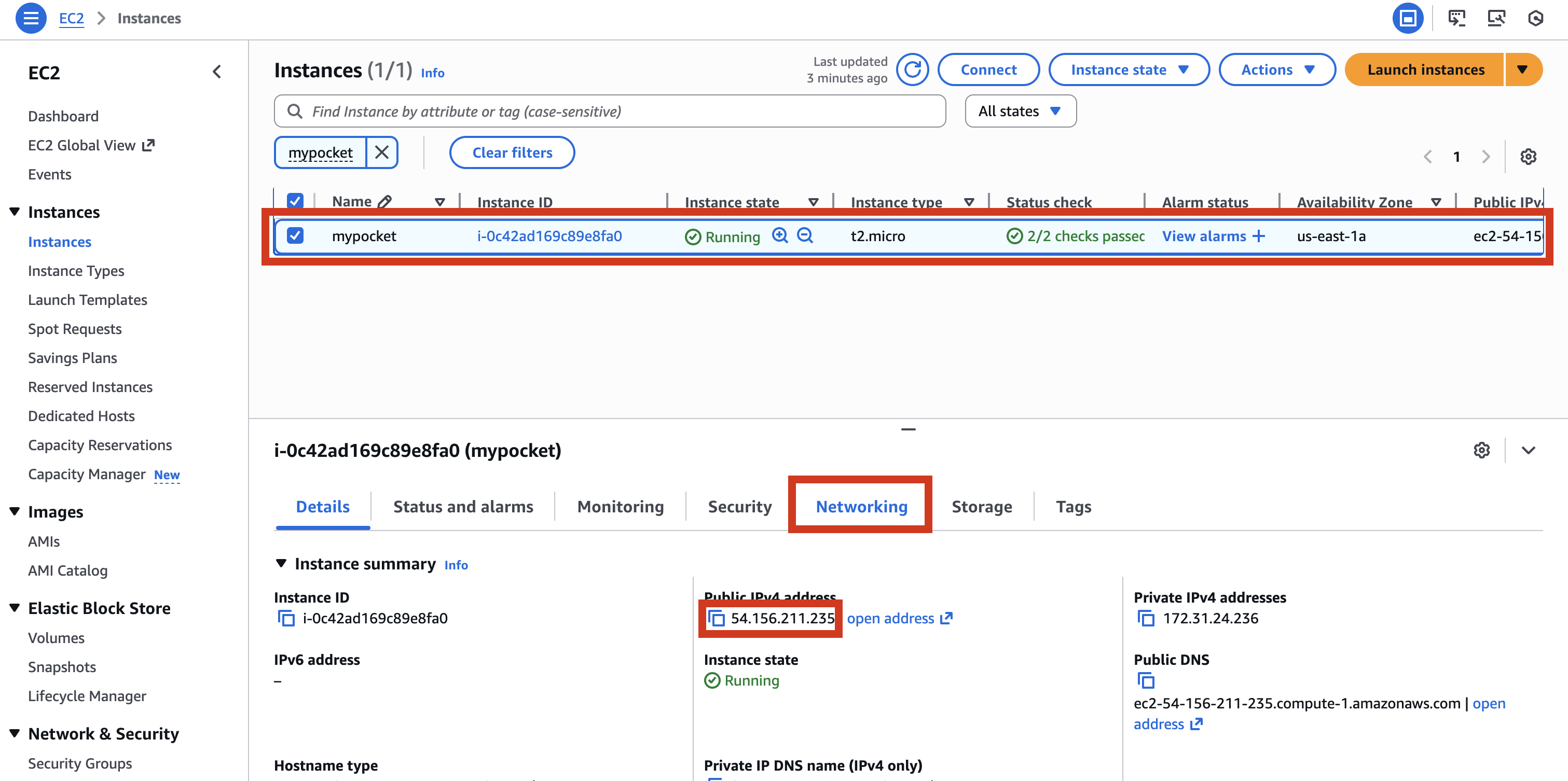
Step 1: Point from your domain to PocketBase
- Get your instance IP
- Go to your favorite DNS provider (Cloudflare, Porkbun, etc...) and create a new record
- Test if the new record propagated already in your terminal

curl http://pb.example.com:8080/api/healthThis should return: {"message":"API is healthy.","code":200,"data":{}}
Step 2: Get NGINX running!
- Install NGINX
- Create your NGINX config file
- Test that PocketBase is accessible on the domain
sudo apt update
sudo apt install -y nginxsudo mkdir -p /var/www/certbotsudo tee /etc/nginx/sites-available/pb.conf >/dev/null <<'NGINX'
server {
listen 80;
server_name pb.example.com;
location ^~ /.well-known/acme-challenge/ {
root /var/www/certbot;
}
location / {
proxy_set_header Host $host;
proxy_set_header X-Real-IP $remote_addr;
proxy_set_header X-Forwarded-For $proxy_add_x_forwarded_for;
proxy_set_header X-Forwarded-Proto $scheme;
# WebSocket support
proxy_set_header Upgrade $http_upgrade;
proxy_set_header Connection "upgrade";
proxy_read_timeout 3600s;
proxy_send_timeout 3600s;
proxy_pass http://127.0.0.1:8080;
}
}
NGINXsudo ln -s /etc/nginx/sites-available/pb.conf /etc/nginx/sites-enabled/
sudo nginx -t && sudo systemctl reload nginxcurl http://pb.example.comStep 3: Enable HTTPS with Let's Encrypt
- Install certbot and run it
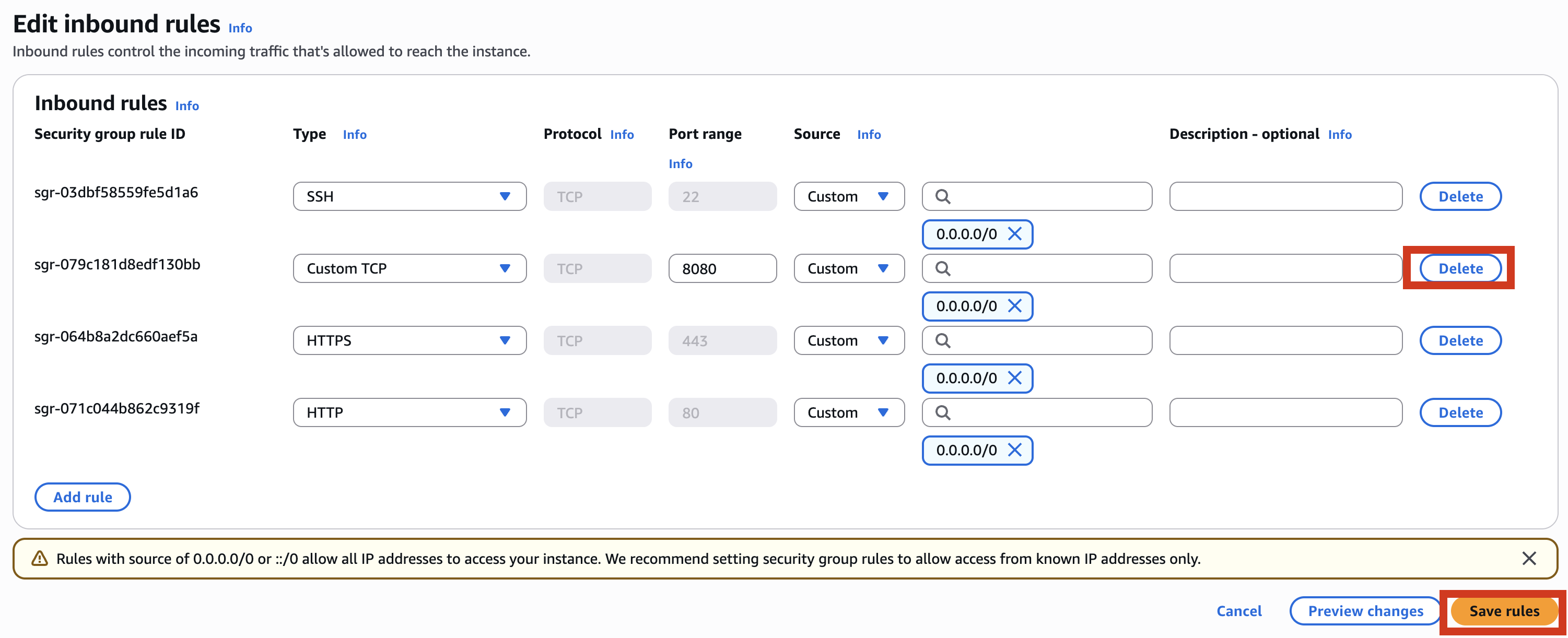
- Let's close the port from the previous tutorial
- Test it
sudo apt install -y certbot python3-certbot-nginx
sudo certbot --nginx -d pb.example.com --email you@example.com --agree-tos --redirect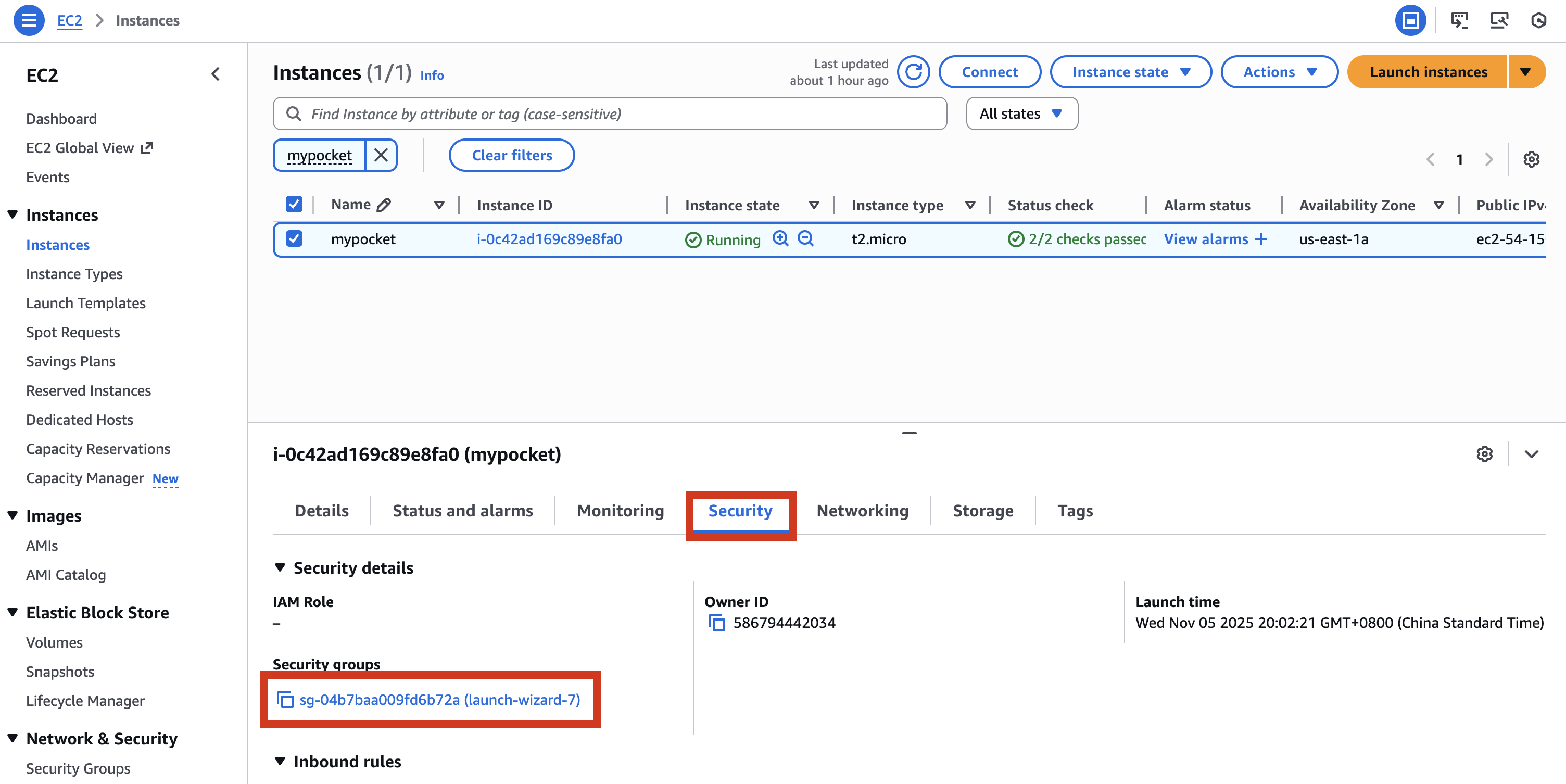
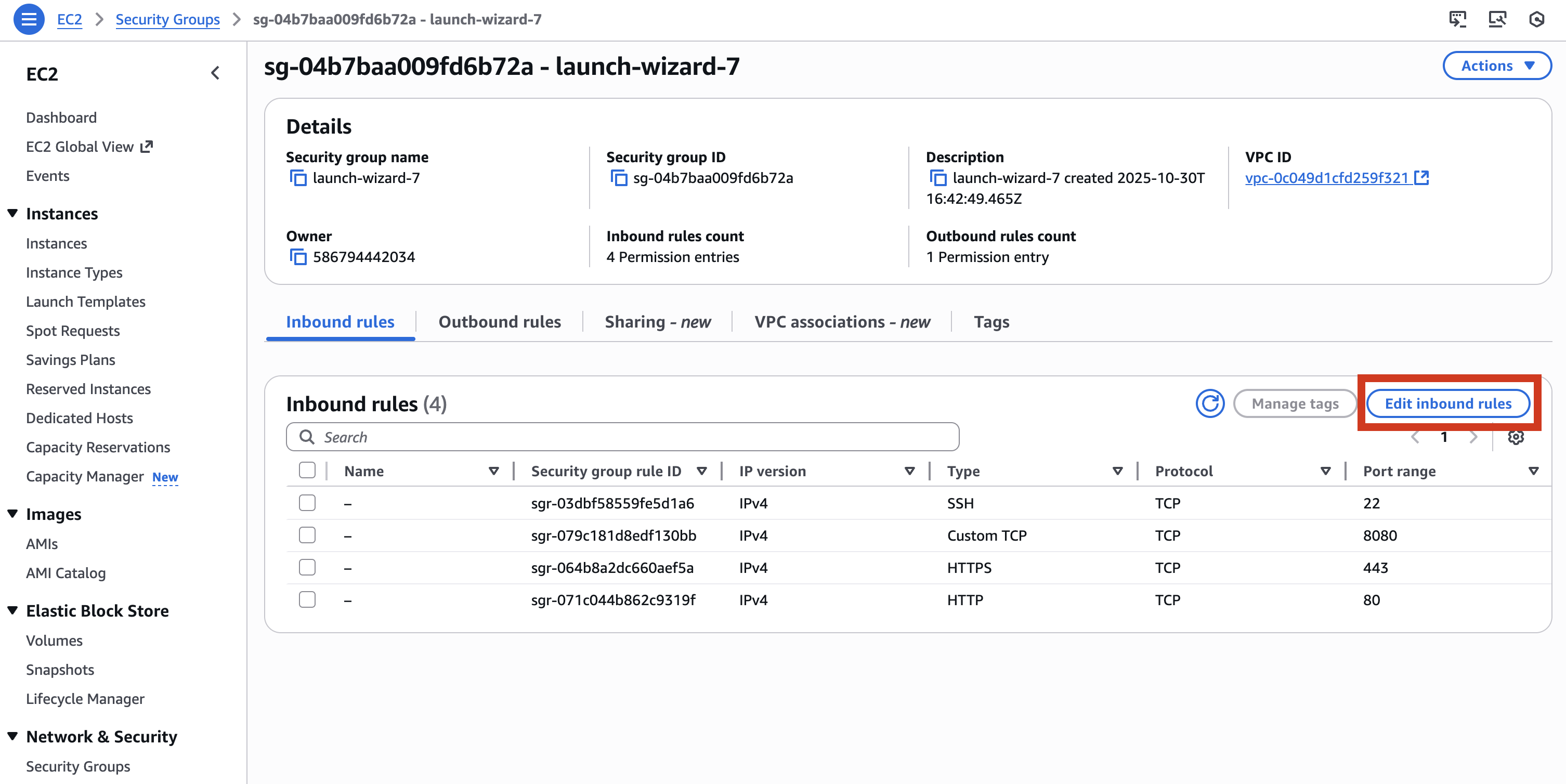
=> go to https://pb.example.com/_/ and use your login/password
✅ You made it! Congrats! Next: Setup S3 Storage, Email and automated backup.
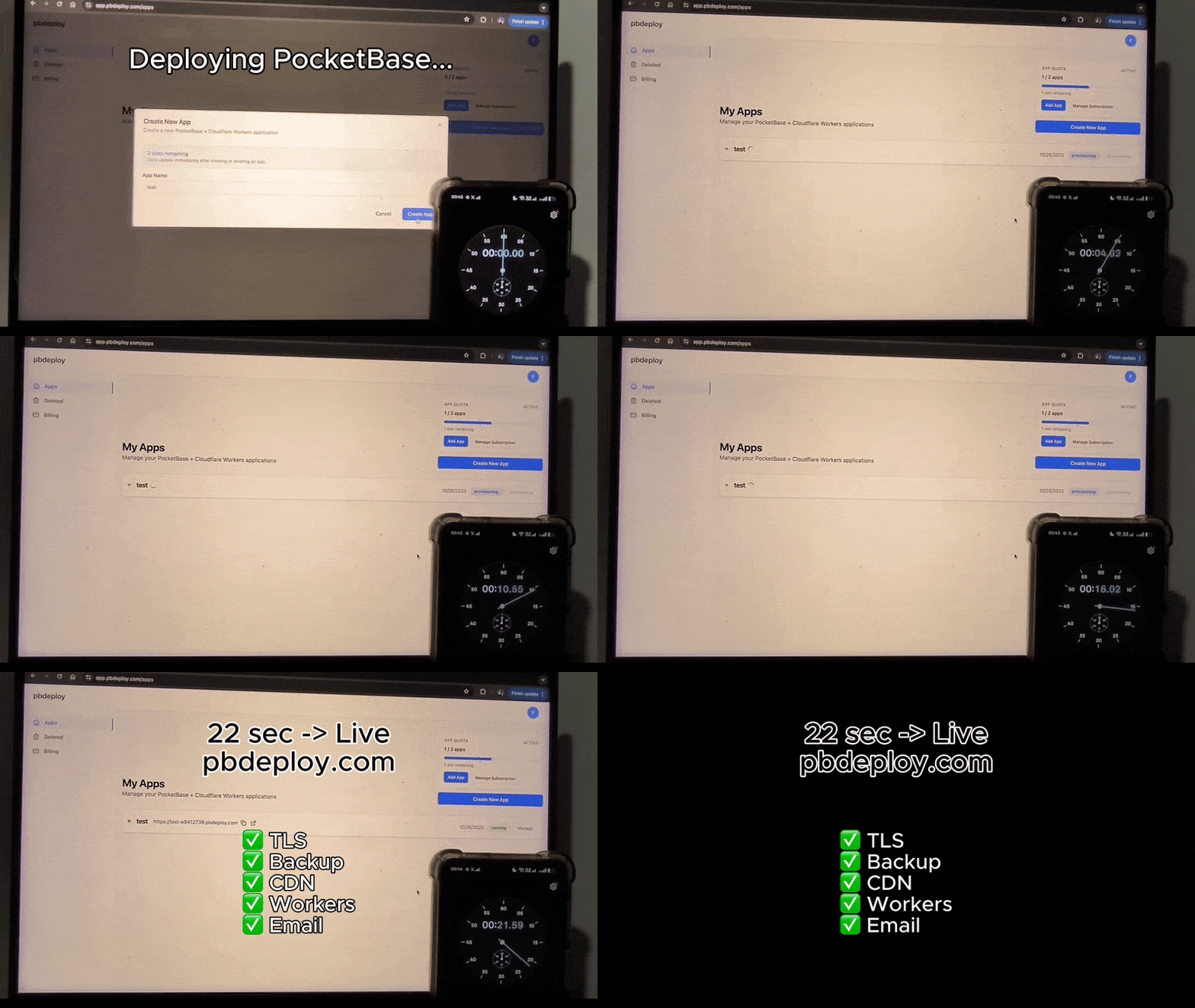
Or skip setup entirely → deploy PocketBase in 20s with pbdeploy.